Linked Equations
Spreadsheets in the DashAPI and Row64 platform support linked equations. A linked equation is an equation in a spreadsheet that references content from a different spreadsheet.
Syntax
Linked equations in the DashAPI and Row64 platform conform to the standard A1 notation. Linked equations use the following syntax:
=SHEET_NAME!CELL_REFERENCE
SHEET_NAME is the name of the targeted sheet, and CELL_REFERENCE is the A1 reference to the targeted cell. An exclamation point separates the sheet name from the cell reference. For example, if one spreadsheet needed to reference cell B4 from a separate spreadsheet, called Sheet1, the reference would be:
=Sheet1!B4
The cell that contains this reference will be linked to the content of cell B4 from Sheet1.
Linked Equations in the DashAPI
To use a linked equation in the DashAPI, simply include the cell reference in the content field of the ssDef list. As with all ssDef list items, the cell link should be enclosed in quotation marks.
The following is an example of a linked equation in an ssDef list:
ssDef2 = [
    ...
    ["B2",    "=Sheet1!B4", "","#,###.00"],
    ...
]
For detailed information on the ssDef list syntax, please see the Components Syntax section of the Spreadsheet page.
Code Example
The following code establishes multiple spreadsheets on a dashboard, and the second spreadsheet, Sheet2, makes a cell reference to the first spreadsheet, Sheet1.
# Module import
from row64tools.dash64 import dash64

# Dashboard save path
dash = dash64("/var/www/dashboards/temp/linkss.dash")

# Establish dashboard panes
pList = [
    ["Main",            "",             "1600",     "900",  "y"],
    ["TopPane",         "Main",         "*",        "*",    ""],
    ["BottomPane",      "Main",         "*",        "*",    ""]
]
dash.Layout.set_panes(pList)

# Spreadsheet definition list 1
ssDef = [
    ["A1",    "Project 1","BIC4a89e7OFFFFFF" ,"#,###.00"],
    ["B1",    None,"BC4a89e7"],
    ["C1",    "SHEET 1","H3BC4a89e7OFFFFFF"],
    ["A2",    "Expense 1"],
    ["B2",    "510.10"],
    ["A3",    "Expense 2"],
    ["B3",    "46.80",""],
    ["A4",    "TOTAL:","B"],
    ["B4",    "=SUM(B2:B3)","B","#,###.00"]
]

# Spreadsheet dimensions list 1
ssDim = [0, 0, 2, 4]

# Add the first spreadsheet to a pane
dash.add_spreadsheet("Sheet1",ssDim, ssDef,"TopPane")

# Spreadsheet definition list 2
ssDef2 = [
    ["A1",    "Expense Summary","BIC1844857OFFFFFF" ,"#,###.00"],
    ["B1",    None,"BC184485OFFFFFF"],
    ["C1",    "SHEET 2","H3BC184485OFFFFFF"],
    ["A2",    "Project 1:"],
    ["B2",    "=Sheet1!B4", "","#,###.00"],
    ["A3",    "Project 2:"],
    ["B3",    "12521", "","#,###.00","12,521.00"],
    ["A4",    "TOTAL:","B"],
    ["B4",    "=SUM(B2:B3)","B","#,###.00"]
]

# Spreadsheet dimensions list 2
ssDim2 = [0, 0, 2, 4]

# Add the second spreadsheet to a pane
dash.add_spreadsheet("Sheet2",ssDim2, ssDef2,"BottomPane")

# Save the dashboard
dash.save()
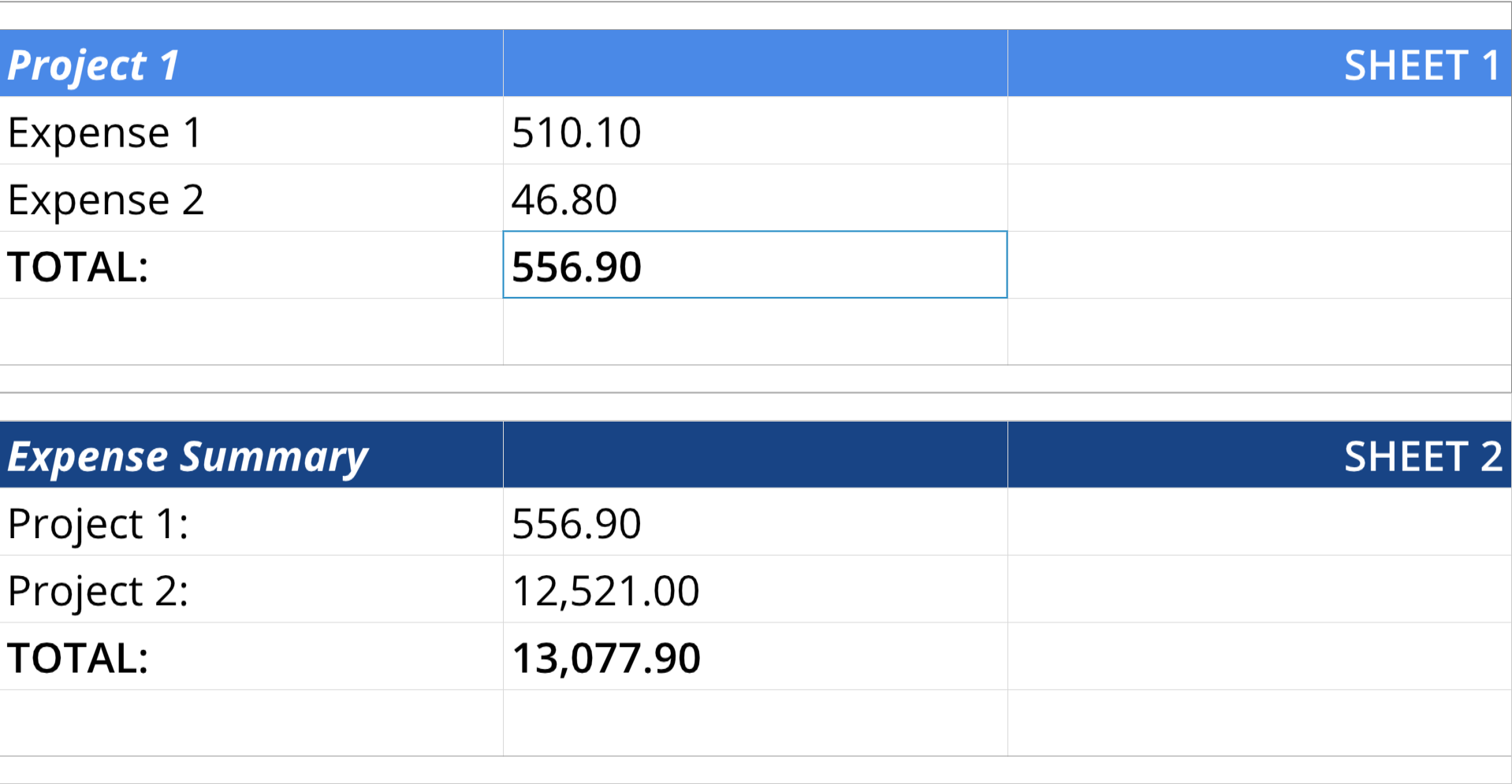
In ssDef2, the list that defines the content of Sheet2, notice that the content of cell B2 contains a reference to cell B4 in Sheet1:
...
["B2",    "=Sheet1!B4", "","#,###.00"],
...