Data API - row64tools
Overview
row64tools is the data API. row64tools is a set of server and workflow tools for the Row64 platform. In the current version, its primary use is writing database connectors to the Row64 Server.
Data in Row64 Server is based on the .ramdb format. This is an extremely fast and flexible format for loading data into dashboards. You can think of it like a low-level JSON for byte streams. Typically, .ramdb files store a single dataframe or table.
Installation
To install row64tools, you will first need to install Pyenv. Use the following command to check if Pyenv is installed on your system:
pyenv --version
If you get an error or a message that Pyenv is not installed, then install it by following the steps in the next section.
If Pyenv is already installed on your system and the command produces a version number, then please skip the Pyenv installation section and proceed with the Install row64tools section.
Tip
You can view the official row64tools project at:
https://pypi.org/project/row64tools/
Row64 has automated the Pyenv setup and provides a script that configures Pyenv and a global Python 3.14.4 version. Using the automation script is the recommended approach. Please continue to the Automatic Pyenv Configuration section to get started. In the event you need to manually configure Pyenv, you can continue to the Manual Pyenv Configuration section.
Automatic Pyenv Configuration
Row64 has automated the Pyenv setup. To automatically deploy and configure Pyenv, you can download and run the Setup_pyenv.py script from Row64's Integrations project on Github.
To use the Setup_pyenv.py script, download it from Github, navigate to the containing directory (e.g. Downloads), and execute it with the following command:
python3 Setup_pyenv.py
Tip
If you encounter any issues with running this script, ensure your system is up to date. After updating your system with the following commands, try to run the Setup_pyenv.py script again.
sudo apt update
sudo apt upgrade -y
The Setup_pyenv.py will install and configure Pyenv with Python 3.14.4, and will set the Pyenv Python 3.14.4 as the system's global Python instance. If the script successfully executes, you will see a success message in the terminal:
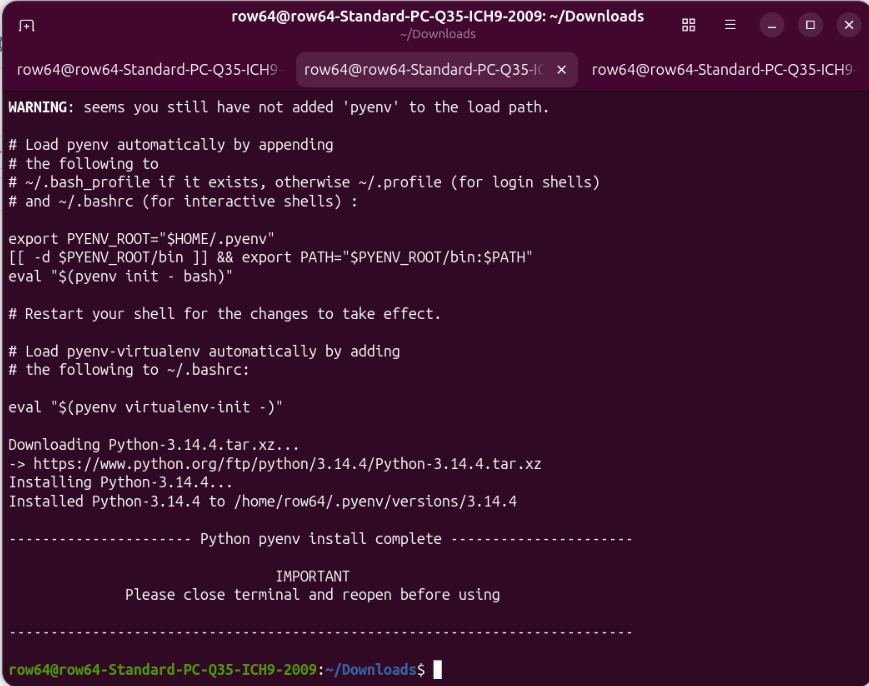
As noted by the output, you will need to restart your shell for the changes to take effect. Close and re-open your terminal to apply the changes.
To verify that the Pyenv setup was successful, run the following Pyenv command to check the active Python instance:
pyenv versions
If Pyenv is configured successfully, the command should be recognized, and you should see an output that lists "system" and "3.14.4".
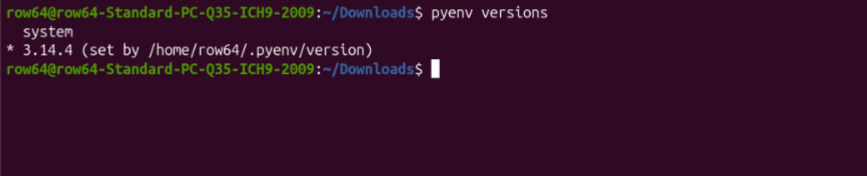
There should be an asterisk next to the "3.14.4" line. This indicates that Python version 3.14.4 is the active version, not the system's Python, which was the objective. This script also sets the Pyenv Python 3.14.4 version to global, meaning that it's active throughout the user account.
This completes the Pyenv setup. Please proceed to the Install row64tools section.
Manual Pyenv Configuration
Install Pyenv
Since Ubuntu 24.04, you are no longer able to pip install on the OS-level Python. This is to prevent interfering with and corrupting the OS Python calls. Now, you need to install a second version of Python and pip install to the new version. The simplest way to do this is to install Pyenv.
First, update APT:
sudo apt update
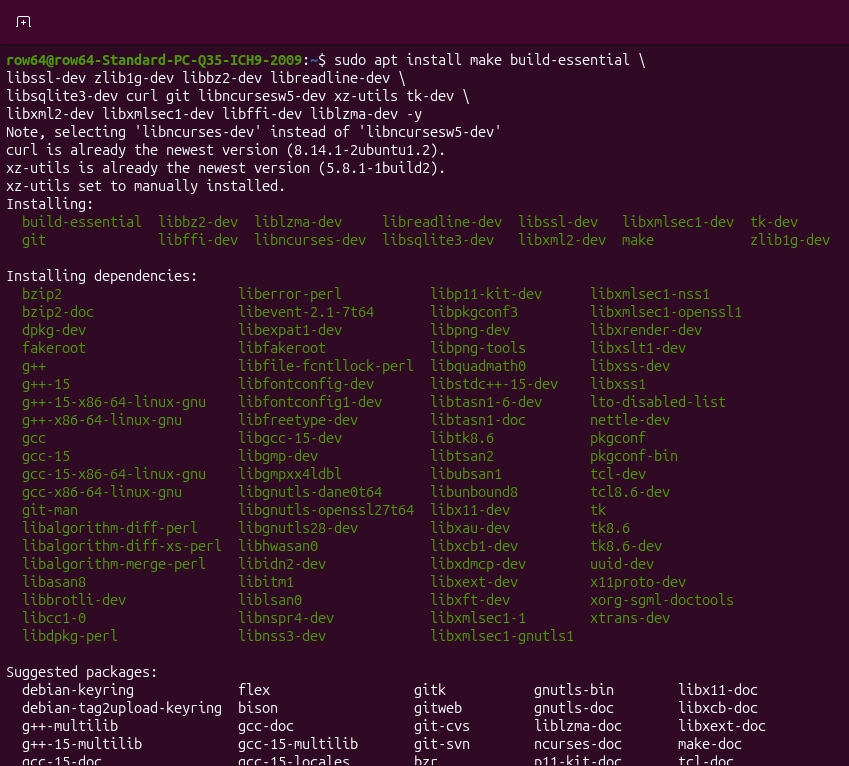
Install build dependencies:
sudo apt install make build-essential \
libssl-dev zlib1g-dev libbz2-dev libreadline-dev \
libsqlite3-dev curl git libncursesw5-dev xz-utils tk-dev \
libxml2-dev libxmlsec1-dev libffi-dev liblzma-dev -y
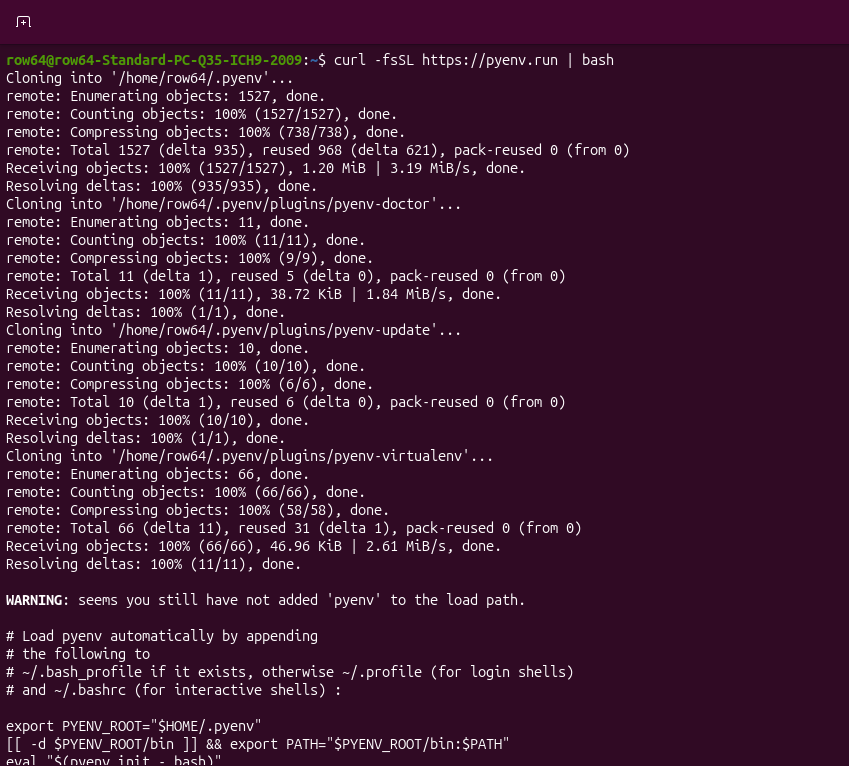
Install Pyenv using the automatic installer, which is Pyenv's recommended approach:
curl -fsSL https://pyenv.run | bash
Run the following commands to configure your shell for Pyenv:
echo 'export PYENV_ROOT="$HOME/.pyenv"' >> ~/.bashrc
echo '[[ -d $PYENV_ROOT/bin ]] && export PATH="$PYENV_ROOT/bin:$PATH"' >> ~/.bashrc
echo 'eval "$(pyenv init - bash)"' >> ~/.bashrc
This command does not produce an output.
Reload your shell by either closing and re-opening it, or with the following command:
exec "$SHELL"
Now, test that Pyenv is installed on your system:
pyenv --version
This command should output a version number.

Now that you've successfully installed Pyenv, you need to couple it with a new instance of Python.
New Python Instance
You now need to install a version of Python to use with Pyenv.
You can use the following command to list all of the available versions of Python you can install with Pyenv:
pyenv install --list
This command will output a large list to the terminal. If you scroll towards the top of the list (above the flavors), you will see a list of the primary version numbers, one of which you will want.
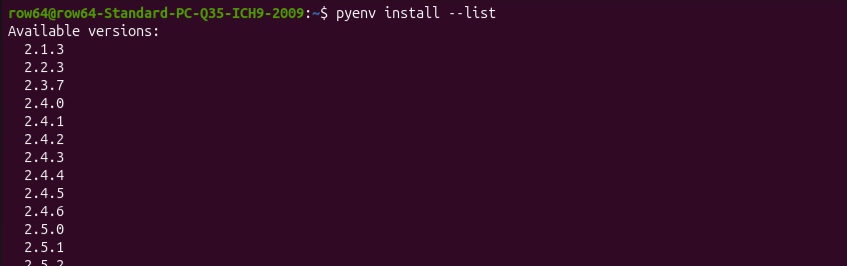
Scroll down for a higher version number until you find the highest version number that does not have the "dev" or other character suffix. At the time of writing, the latest stable release is 3.14.4.
(You can also reference https://www.python.org/downloads/ for version information).
Use the following command to install a particular version of Python to Pyenv. This example will use 3.14.4.
pyenv install 3.14.4
The command may take a minute to complete.
Notice
You can uninstall a Python version in a similar fashion that you installed it. Simply use the pyenv uninstall command, followed by the targeted version number.
For example: pyenv uninstall 3.15-dev
You don't need to uninstall any Python instances for this example.
When the specified Python version finishes installing, you can verify that the version is present on your system by querying the Pyenv versions:
pyenv versions
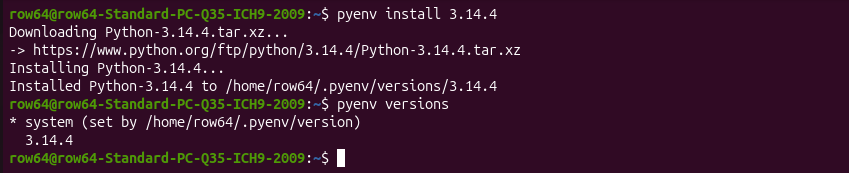
You should see the new Python version below the system entry. Notice how system is preceded by an asterisk. This asterisk simply indicates which version of Python is currently active. Since you just installed a new version and haven't set its scope, the system Python is the active instance.
Tip
To check for just the current instance of Python, you can use the command:
pyenv version
This command is very similar to the previous command used to query the installed Pyenv versions, but lacks the trailing "s" in "versions". This command simply shows you the currently used instance, rather than outputting the full list of installed versions.
For example, the following screenshot demonstrates the difference between the two commands:
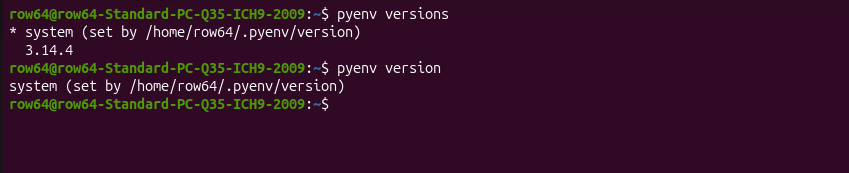
When checking your active Python version, either of these commands are valid.
Set Python Scope
Pyenv allows you to define when different Python instances are employed. There are three options: shell, local, and global.
The shell setting applies a specific Python instance to the shell session. The local option applies a Python instance to a defined directory, which is useful for applying a Python instance to a particular project or application. The global option applies a Python instance across a user account. For simplicity, this example will use the global option.
Set the Python 3.14.4 instance to global:
pyenv global 3.14.4
Check that the Python instance is applied:
pyenv version
Instead of "system", you should now see your Python version number as the active instance.
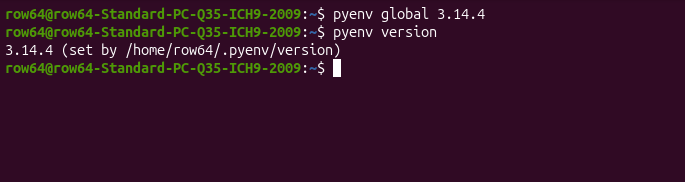
With the Python instance set to global, you can invoke it at any time using the python command (as opposed to the python3 command, which invokes the operating system's instance).
Verify PIP
Some features in row64tools require additional Python libraries. Now that Pyenv is installed, you can safely add these libraries to a virtual Python environment rather than using the OS Python.
You will use PIP to install the needed libraries. PIP is included with Python 3.4 and up. To see which version of PIP your Pyenv Python instance is using, you can use the following command:
pyenv which pip
You should see that Pyenv's PIP is installed in the Pyenv versions folder corresponding to the version of Python you installed. For example, for Python version 3.14.4, your path may resemble:
/home/[USER]/.pyenv/versions/3.14.4/bin/pip.
Now you know where your Pyenv Python's PIP is installed, verify which PIP your system is actually using:
pip --version
Since your Pyenv Python was previously set to global, you should see that this PIP is nestled in the same /home/[USER]/.pyenv/versions/3.14.4 directory.
Tip
This example will continue to use Pyenv, but if you wanted to revert back to your system Python instance, you would use the following command:
pyenv global system
This would revert you back to your operating system's instance of Python. You can verify that your system's Python is the current instance with the command used before:
pyenv version
The output should be back to system instead of 3.14.4, or whichever Python version you installed.
From here, if you checked the PIP version again, you should get a different PIP installation path:
pip --version
You may or may not have PIP installed on your OS Python. If you don't, you'll get an error message that PIP is not installed (but it might indicate that it's installed on your Pyenv Python instance). If it is installed, you will get a different installation path. This shows that the PIP instances change with the Python instances.
Install row64tools
row64tools requires the pandas Python package. Now that you've verified that PIP is available on your Pyenv Python instance, and that the Pyenv instance is set to global, download the needed libraries:
pip install pandas
Tip
Make sure you're using your Pyenv Python instance for installing the extra packages and row64tools, not the OS Python.
Finally, install row64tools:
pip install row64tools
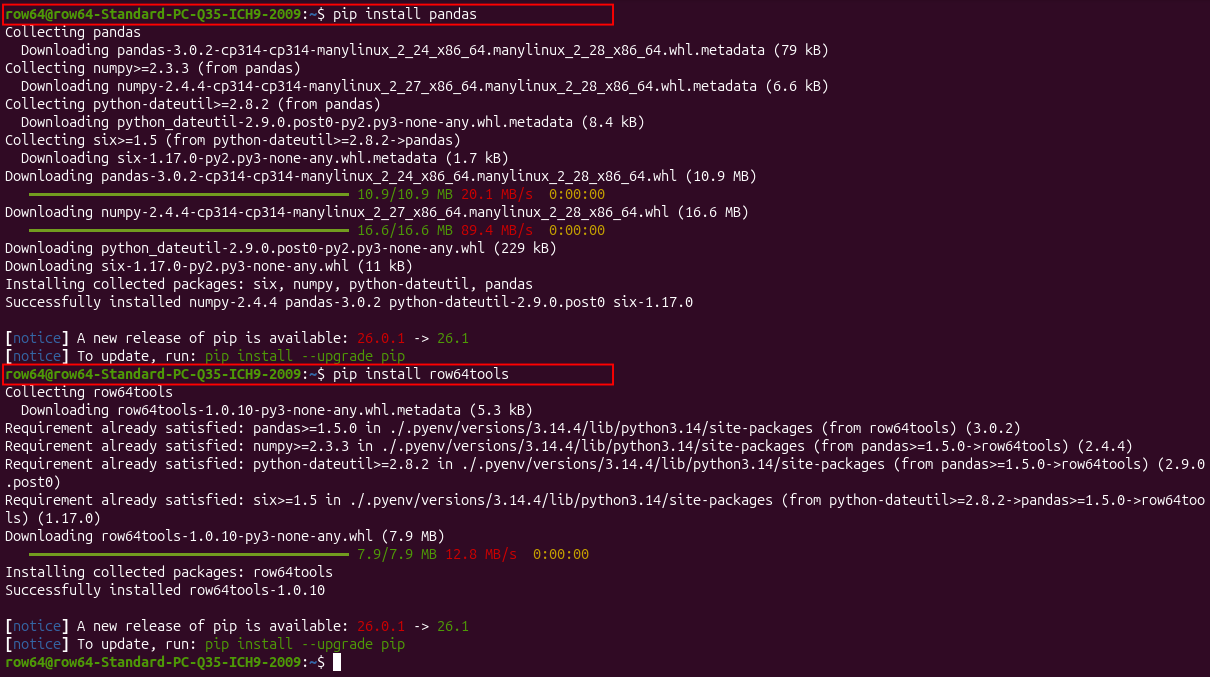
row64tools should now be available on your Pyenv Python instance.
Upgrade row64tools
If you ever need to upgrade row64tools, you can use the following command:
pip install --upgrade row64tools