Using row64tools
Using row64tools simply involves executing Python scripts. When using row64tools, create new Python (.py) files based on the templates in this guide, and execute them. With Pyenv installed, you can execute a Python script using the python command (instead of the python3 command).
For example, if you created a row64tools Python script called row64tools_example.py, you'd execute it from within the containing directory with the command:
python row64tools_example.py
This article provides templates for different row64tools operations. For each of the following examples, you would need to create your own .py file, navigate to its directory, and execute it.
Dataframe to .ramdb
The following is an example that shows how to save a dataframe into the .ramdb format:
import pandas as pd
from row64tools import ramdb

data = {"txt": ["a","b", "c"],"num": [1, 2, 3]}
df = pd.DataFrame(data)
ramdb.save_from_df(df, "/home/row64/Downloads/testSave.ramdb")
This example saves a dataframe to the RamDB file format to the /home/row64/Downloads/ directory (change if needed) and named it testSave.ramdb. If you have ByteStream installed, you can open the testSave.ramdb file to see its contents.
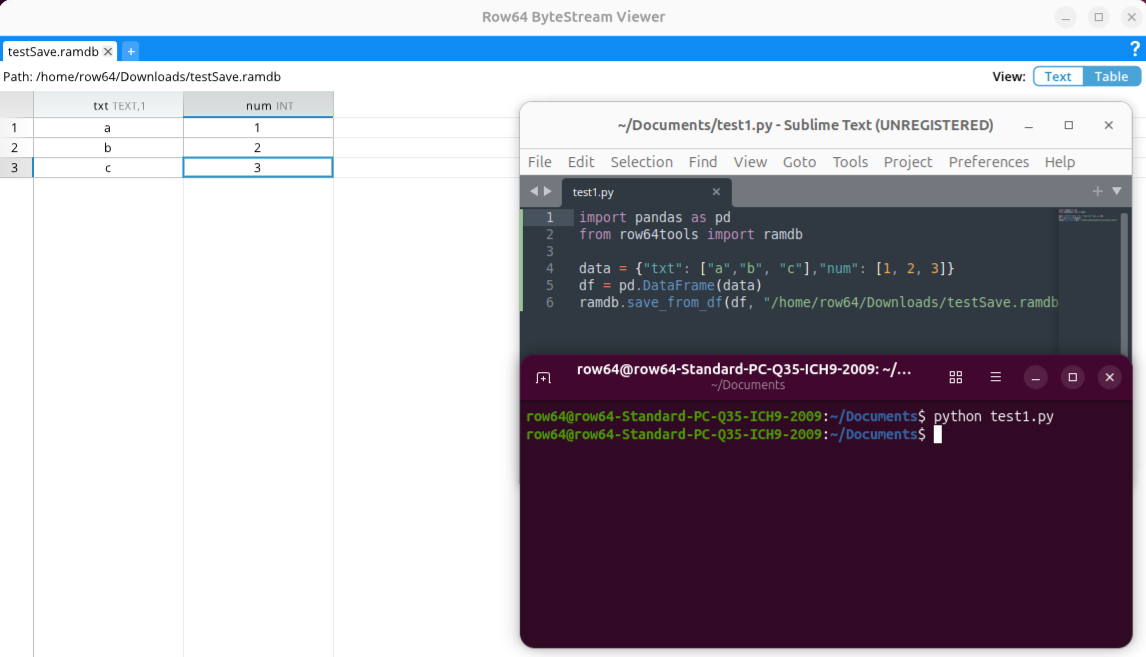
ByteStream Viewer
Installation instructions for ByteStream Viewer are located in the Row64 Stream installation instructions. Find the Stream installation page that correlates with your operating system, then find the Install ByteStream Viewer section.
For example, the ByteStream Viewer section for Ubuntu is located at: Ubuntu Stream.
If you want to install ByteStream Viewer, you can simply refer to the Install ByteStream Viewer section of the Stream documentation; you don't need to set up the rest of Stream to use ByteStream Viewer.
Working with Dates
Dates are an important aspect of working with business dashboards. All you need to remember is to use pd.to_datetime to tell pandas your date columns are dates. row64tools then correctly converts them to date values in your dashboard.
The following is an example:
import pandas as pd
from row64tools import ramdb

data = {
  "tier": [4, 2, 1],
  "active": [False, True, False],
  "name": ["David", "Mary", "John"],
  "points": [10.5, 6.5, 8.0],
  "sign up": ["09/01/2017","07/14/2022","04/03/2015"]
}
df = pd.DataFrame(data)
df["sign up"] = pd.to_datetime(df["sign up"])

ramdb.save_from_df(df, "/home/row64/Downloads/testSave.ramdb")
Database Connector
This section explains how to save a .ramdb in Row64 Server on Linux.
.ramdb files are stored in: /var/www/ramdb.
The running server is connected to the files in the live folder. For example, if you load the Amazon Reviews demo, it uses the table:
/var/www/ramdb/live/RAMDB.Row64/Examples/AmazonReviews.ramdb
The sub-folders tell the server about the table:
live
  └── RAMDB.Row64
              └── Examples
                        └── AmazonReviews.ramdb
RAMD.Row64is the connector for each database type.Examplesis the group or folder of tables.AmazonReviews.ramdbis the table name.
For a simple test, upload to the Temp folder and restart the server:
import pandas as pd
from row64tools import ramdb

data = {"txt": ["a","b", "c"],"num": [1, 2, 3]}
df = pd.DataFrame(data)
ramdb.save_from_df(df, "/var/www/ramdb/live/RAMDB.Row64/Temp/Test.ramdb")
In practice, this is not good for a running dashboard server with many users, especially when you are making frequent updates to the table. It's better to upload new files without restarting the server. To do this, you place the file into the loading folder.
Row64 Server watches the loading folder and waits for a moment when the file is not being accessed. Once it detects that the file is not in use, it will swap it out and pull it into RAM.
This is fairly simple; the only detail is to make sure you have a matching folder structure for where you want it to end up in the live folder.
import pandas as pd
from row64tools import ramdb
from pathlib import Path

data = {"txt": ["a","b", "c"],"num": [1, 2, 3]}
df = pd.DataFrame(data)
Path("/var/www/ramdb/loading/RAMDB.Row64/Temp").mkdir(parents=True, exist_ok=True)
ramdb.save_from_df(df, "/var/www/ramdb/loading/RAMDB.Row64/Temp/Test.ramdb")
The server checks every minute or so for changes. If you run the example while the server is running, you will see the file at:
/var/www/ramdb/loading/RAMDB.Row64/Temp/Test.ramdb
If you wait for the server to update and check again, you will see that the file is gone and has moved into the live folder.
Loading .ramdb Files
You can also load and run diagnostics on .ramdb files.
row64tools also includes a .ramdb for testing in the .example_path() function.
The following example loads and runs diagnostics with JSON, Pandas DataFrame, and NumPy:
from row64tools import ramdb

ePath = ramdb.example_path()
print(ePath)

print("\n---------------- log ramdb to json string ----------------")
ejson = ramdb.load_to_json(ePath)
print(ejson)

print("\n--------------- load ramdb to dataframe ---------------")
df = ramdb.load_to_df(ePath)
print(df)

print("\n------------- load ramdb to numpy objects -------------")
npObj = ramdb.load_to_np(ePath)
print("Number of Columns: ", npObj['NbCols'])
print("Number of Rows: ", npObj['NbRows'])
print("Column Names: ", npObj['ColNames'])
print("Column Types: ", npObj['ColTypes'])
print("Column Sizes: ", npObj['ColSizes'])
print("Column Format: ", npObj['ColFormat'])
print("Columns[0] Values: ", npObj['Tables'][0])
print("Columns[1] Values: ", npObj['Tables'][1])
print("Columns[2] Values: ", npObj['Tables'][2])