Connection Issues
General Checks
If you are unable to connect to Row64 Server, here are steps to isolate the problem:
-
Make sure your browser is up to date.
-
Ping the server machine to confirm from the client to confirm it is accessible (if not, consult with your IT team).
-
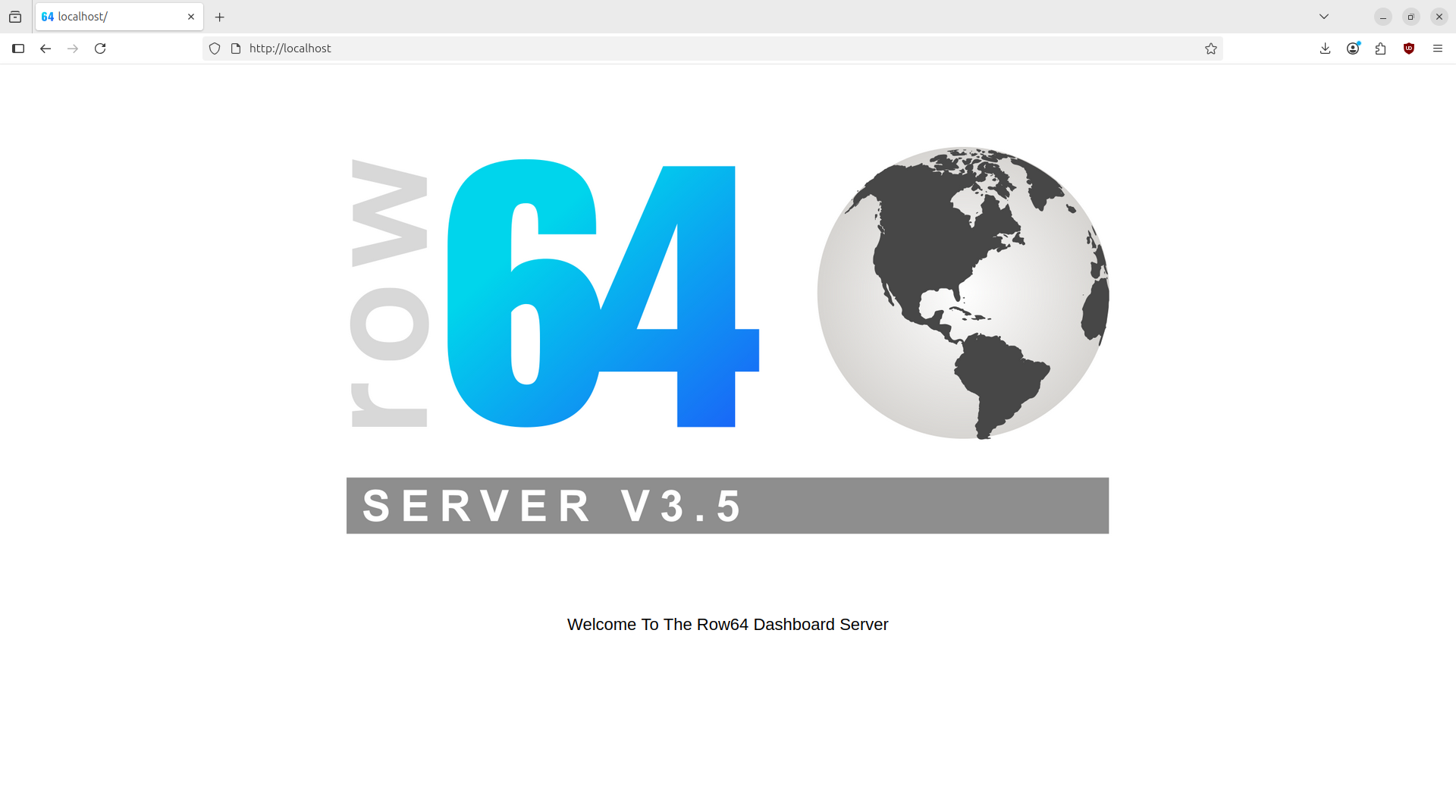
Server Connection - type in the row64server name in the browser URL window. You should see the image below confirming you can connect to the server:
Network Setup
-
Confirm that ports 80 and 9002 are accessible from your machine.
-
Port information is specified in the config file. The default port is 9002.
-
If the default port is changed, the
connect.jsfile in/var/html/dashmust be updated with the same port.
-
-
If Linux firewall is enabled, all ports should be accessible via ufw.
-
The configuration file includes an auto-flag that retrieves the system IP address when the server boots. If you want a static IP address (such as for a public IP address), and you do not change the flag in the config file, it will automatically change the URL in the
connect.js.
Configurations
-
If you see the server page but get a blank screen when you type the full dashboard URL examples, check the following:
-
Ensure the example URL is correctly spelled.
-
Clear your browser cache. (If you have updated IP addresses, you will need to clear the cache. See your browser's specific instructions to do so.)
-
Confirm IP ws or wss address in
/var/www/html/dash/connect.jsmatches the IP address of the Row64server (what would be visible from the client accessing the server).- If it does not match, manually update the address and set the
AUTO_CONNECT_JSvariable toFALSEin the/opt/row64server/conf/config.jsonfile and restart the server.
- If it does not match, manually update the address and set the
-
If there are still issues, inspect Browser Debug console for other error messages
-

HTTPS
-
When using HTTPS, ensure that:
-
HTTPS is set in the config file
-
The correct paths to the certificates are configured
-
Apache is set up for secure connections with the right certificates
-
connect.jsis updated towss
-
-
For in-depth information on setting up HTTPS, please see the HTTPS Setup documentation in the Security section.
VPC
- For additional information on installing in VPC environments, please see the VPS Setup section in the AWS Cloud documentation.